AI PDF remediation for accessible, searchable, and RAG-ready exports
Turn existing PDFs into accessible tagged PDFs with AI-powered PDF remediation, manual review, re-checking, and export workflows for teams that need documents fixed — not just reported. The goal is an externally verifiable, Accessible, Searchable, and RAG-Ready PDF artifact with structure that can be validated after export for WCAG, PDF/UA, and Section 508 workflows.
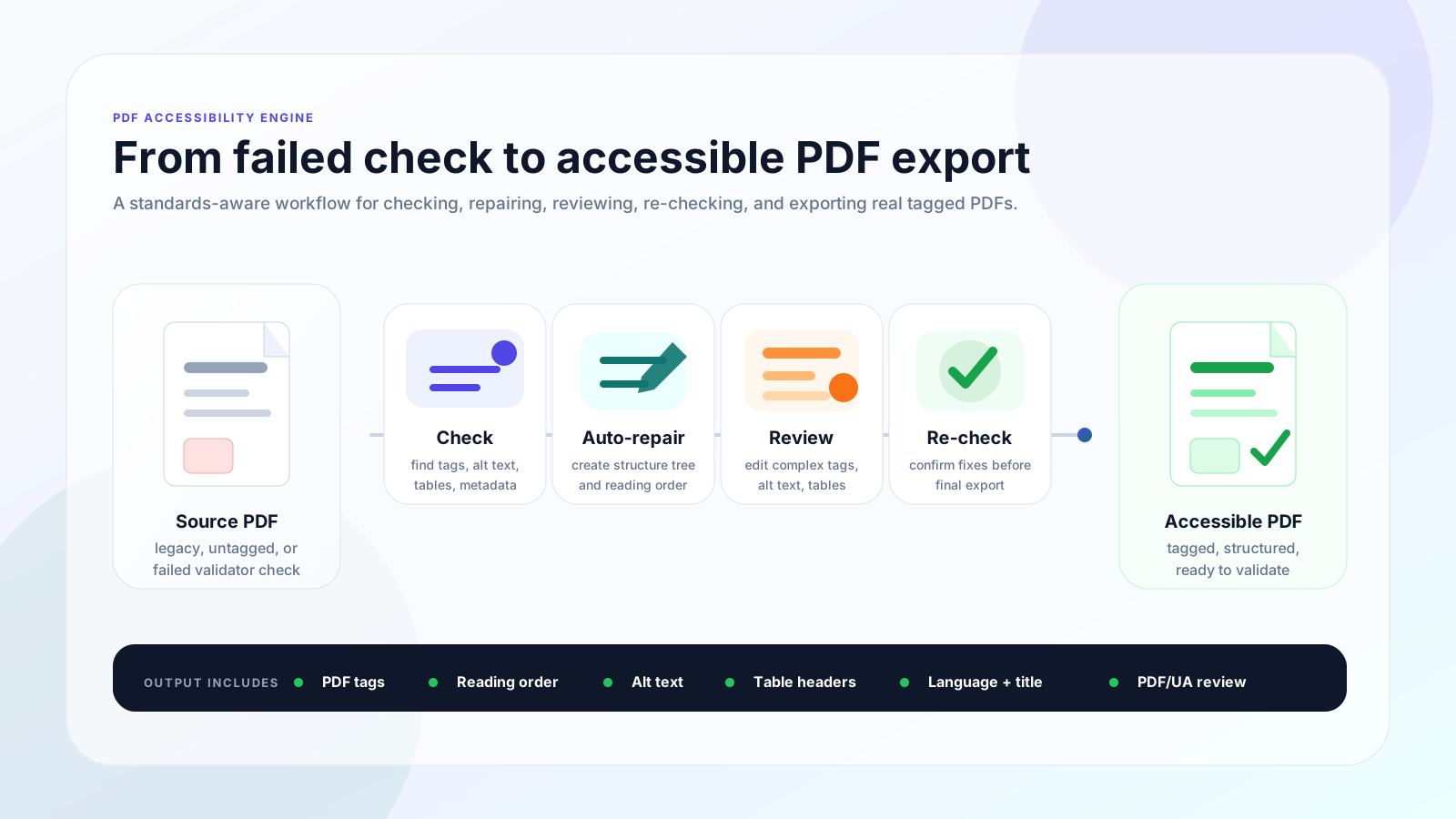
AI PDF remediation workflow
The workflow is built around real file correction: check the PDF, repair tags and structure, review complex items, re-check, and export a corrected accessible PDF.
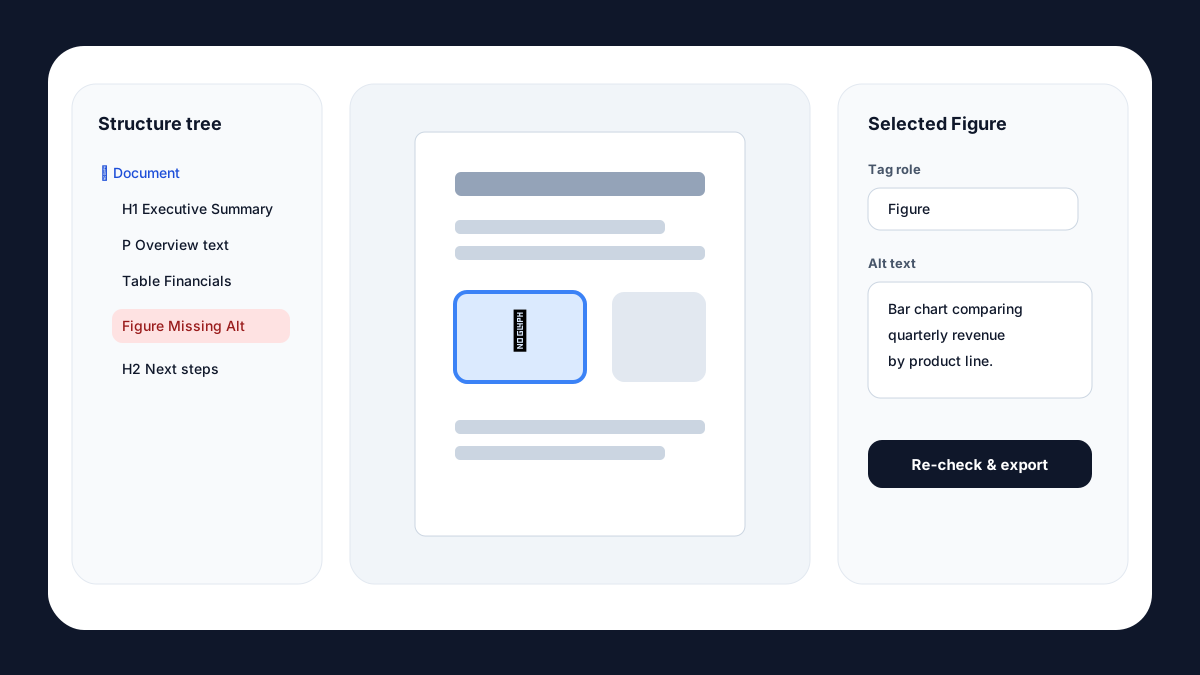
Manual editor fallback for complex PDFs
When automation flags review items, users can inspect elements, update tags and alt text, then re-check the document before exporting.
Convert existing PDFs into accessible tagged PDFs
Upload legacy PDFs, reports, forms, policy documents, handbooks, and public-facing files. The AI PDF remediation engine analyzes document structure, creates accessibility tags, improves reading order, detects headings and tables, and prepares the file for assistive technology.
- ✓No original Word or InDesign source file required
- ✓Automatic structure tagging for most common PDF layouts
- ✓Fast conversion designed to complete in seconds for typical files
- ✓Output path visible in the workspace for download and review
Check against PDF accessibility expectations before and after remediation
The workspace is built around a check → remediate → re-check loop. Teams can see document-level issues, fix what can be automated, manually adjust complex elements, then re-run the score before exporting the corrected PDF.
- ✓WCAG, PDF/UA, Section 508, ADA, and EN 301 549 oriented reporting
- ✓PDF-level signals such as tags, language, title, metadata, and structure tree
- ✓Clear issue descriptions instead of raw validator jargon
- ✓Re-check after edits so teams know what changed
Edit tags, alt text, content, and reading order when automation is not enough
Automatic remediation handles the majority of common documents, but complex tables, charts, scanned content, unusual layouts, and ambiguous reading order may need human review. The manual editor gives operators a controlled workspace instead of forcing them into raw PDF internals.
- ✓Select elements from the structure tree
- ✓Edit tag type, heading level, content, and image alt text
- ✓Review issue lists beside the PDF preview
- ✓Export after the document has been re-checked
Process high-volume document folders without losing per-file control
For teams with many documents, batch workflows group files by status so operators can triage what is ready, what needs review, and what should be exported together. The goal is high-speed conversion without hiding the documents that still need attention.
- ✓Batch check and batch remediate flows
- ✓Needs-work and compliant file grouping
- ✓Per-file check, edit, remediate, download, and delete actions
- ✓ZIP download for ready accessible PDFs
Best for teams that need accessible PDF exports
PDFAccessibility.ai fits teams that need a corrected file they can publish, archive, and validate — not only a scorecard. It is especially useful when accessibility, searchability, and RAG-ready structure all matter.
Compliance teams remediating public PDFs
Best for teams that must turn existing reports, policies, forms, and public documents into accessible PDF exports that can be downloaded and reviewed outside the app.
Agencies handling PDF accessibility backlogs
Useful when many legacy PDFs need a repeatable check → remediate → review → export workflow instead of one-off manual handling for every file.
Teams that need external validation after export
Designed for organizations that treat the exported PDF as the source of truth and re-check it with an industry PDF/UA or WCAG-oriented validator.
Organizations with complex PDFs that need manual fallback
Fits workflows where automation handles common structure fixes but ambiguous tables, figures, forms, charts, or reading order require human review before final export.
Not best for
Use the remediation product when the PDF itself needs accessibility structure and a validated export. These cases may be better served by a simpler tool or a different workflow.
Basic PDF conversion only
If the goal is only to convert PDF pages into Word, images, or plain text, a simple utility may be a better fit than an accessibility remediation workflow.
Source files that are faster to fix upstream
When the original Word, PowerPoint, InDesign, or HTML source is available and easy to correct, fixing the source before re-exporting the PDF may be the cleaner path.
Fully manual audit-only services
The product is built for teams that want automated remediation, manual fallback, and export workflows — not only a consultant-style audit report with no corrected artifact.
Common remediation workflows
Most teams use the product in one of these practical loops, depending on whether they are fixing one urgent PDF, clearing a backlog, or preparing accessible documents for search and RAG ingestion.
Single-document remediation
Upload one PDF, run the accessibility check, auto-remediate common tag and metadata issues, review complex items, then export the corrected file.
Backlog triage
Check a folder of PDFs, group files by ready, needs review, and failed states, then prioritize documents that block publication or compliance deadlines.
Manual review loop
Use the issue list and structure editor to adjust tags, headings, alt text, content labels, and reading order for items automation cannot safely infer.
Accessible + searchable publishing
Export an accessible tagged PDF while preserving document structure useful for search, citations, and downstream RAG-ready document workflows.
Manual fallback explanation
Manual fallback is the safety path for complex PDFs. It exists because some accessibility decisions require context: whether an image is meaningful or decorative, which cell is a table header, or which visual order matches the intended reading order.
- 1Automation proposes structure repairs for common PDF layouts, but it does not guess blindly when the document is ambiguous.
- 2Complex items can be opened in a manual workspace where a user reviews the PDF preview, structure tree, issue details, and editable fields together.
- 3Manual edits are expected to change the exported PDF artifact itself: tags, roles, headings, reading order, alt text, metadata, and accessible text should be written into the file, not only stored as dashboard state.
Export validation explanation
Export validation keeps the claim grounded: the final question is whether the downloaded PDF contains the required structure and can pass real review, not whether an internal UI label changed.
- 1Re-check inside the workspace before export to confirm that automated and manual changes improved the document state.
- 2Download the remediated PDF as the artifact that will be published, archived, or shared with reviewers.
- 3Validate the exported file with an industry PDF/UA or WCAG-oriented checker. Blocking errors should be fixed in the PDF; optional advisory notices should not be treated as the same thing as a failed export.
Built for files that must pass real accessibility review
The goal is a physically corrected PDF export that can be reviewed outside the product. Internal scoring is useful for workflow, but the final result must be an accessible file with actual PDF tags, metadata, reading order, and alternative text written into the document.
PDF/UA
Tagged PDF structure, reading order, alternate text, document language, metadata, headings, lists, links, and table semantics.
WCAG
Accessible names, meaningful sequence, non-text alternatives, navigability, labels, and practical barriers that affect assistive technology users.
Section 508
Document accessibility expectations for public-sector, education, healthcare, finance, procurement, and enterprise publishing teams.
External validation
Exported files should be re-checkable by industry PDF/UA and WCAG validators, not just improved inside an internal dashboard.
Common PDF accessibility failures the workflow can route
Use the free checker for diagnosis, then move into remediation when the document needs an actual corrected export.
Run a free checkMissing tags
Create a logical structure tree so screen readers can navigate headings, paragraphs, lists, tables, links, and figures.
Incorrect reading order
Reorder content so the spoken and keyboard navigation sequence matches the visual document.
Images without alt text
Generate or edit concise alternative text and write it to the correct figure element in the exported PDF.
Tables without headers
Identify table structure, headers, rows, and cells so data tables are usable by assistive technology.
Missing language/title
Add document-level metadata required by accessibility workflows and many PDF/UA checks.
Complex review items
Flag ambiguous layouts, charts, forms, or scanned pages for controlled manual review before final export.
PDF remediation FAQ
These answers match the page structured data so search engines and users see the same information.
What is AI PDF remediation?+
AI PDF remediation uses automation to find and repair accessibility barriers in an existing PDF, such as missing tags, reading order problems, headings, tables, image alternative text, document metadata, and export-ready accessibility structure. Complex decisions can still be routed to manual review before export.
Can AI remediate every PDF automatically?+
No AI PDF remediation workflow should blindly promise that every PDF can be fixed automatically. PDFAccessibility.ai automates common structure repairs, then gives teams a manual editor for ambiguous tables, figures, forms, scanned content, reading order, and other complex review items.
How is AI PDF remediation different from a PDF accessibility checker?+
A PDF accessibility checker diagnoses problems and produces a report. AI PDF remediation goes further by applying repairs, supporting manual review when automation is not enough, re-checking the result, and exporting a corrected PDF artifact that can be validated outside the product.
Ready to remediate PDFs at scale?
Choose a plan for automated remediation, batch processing, manual review, and accessible PDF export.